The Multi-user feature allows you to grant access to your TrueRanker account to other team members, employees, or clients. Instead of sharing your master password, you can create individual sub-accounts and precisely control which projects each person can view and manage.
(Note: The Multi-user feature is available on our Professional, Agency, and Custom plans).
How to access the Multi-user panel #
- Click on your profile icon (your email address) in the top right corner of the screen.
- Select “My Profile” from the drop-down menu.
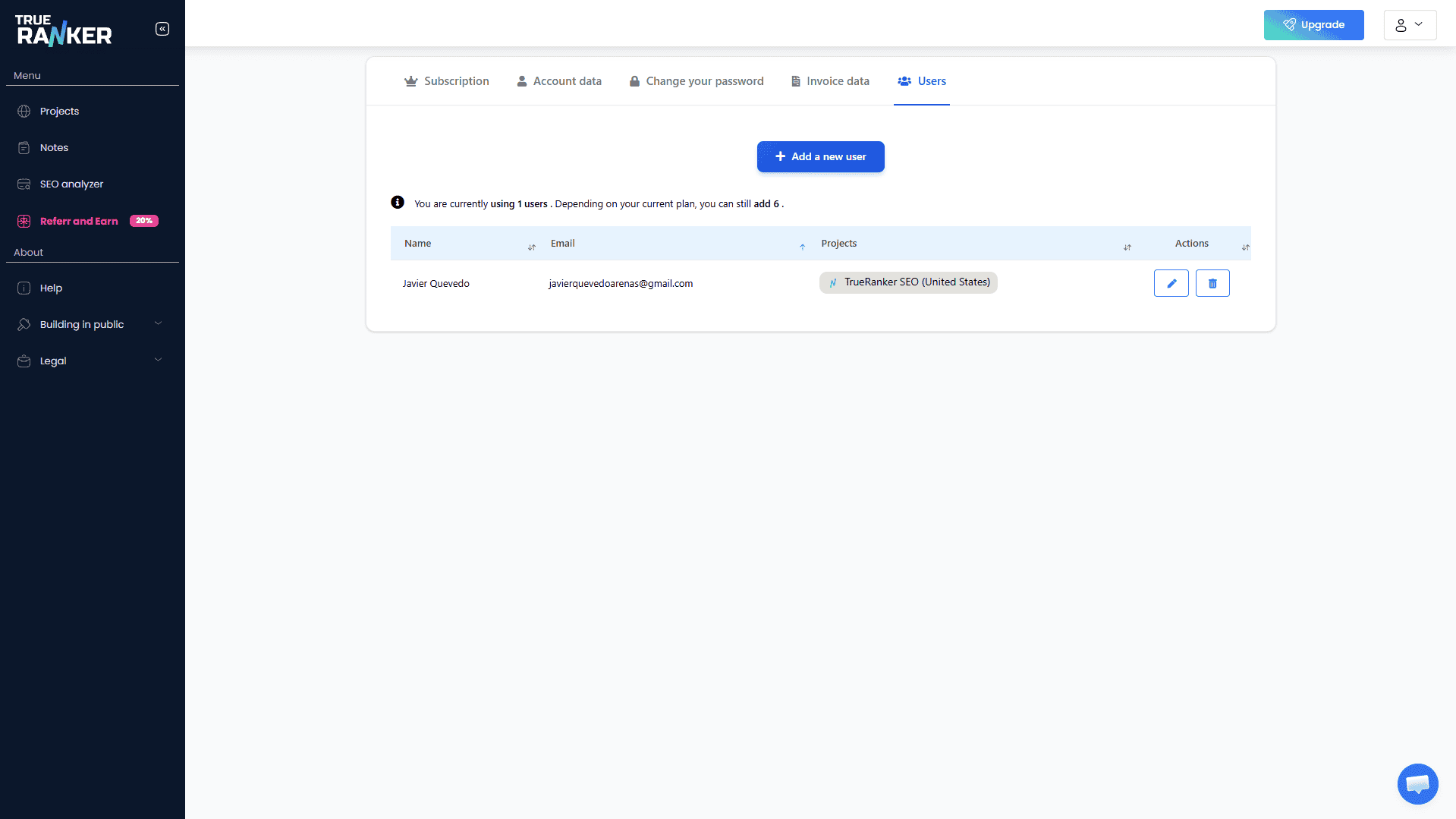
- Navigate to the “Users” (Multi-user) tab on the far right.
Here, you will see a clear table displaying all your currently active team members, their email addresses, and the specific projects they have access to.
How to add a new user #
To invite a new member to your workspace, follow these simple steps:
- Click the blue “+ Add new user” button located at the top of the table.
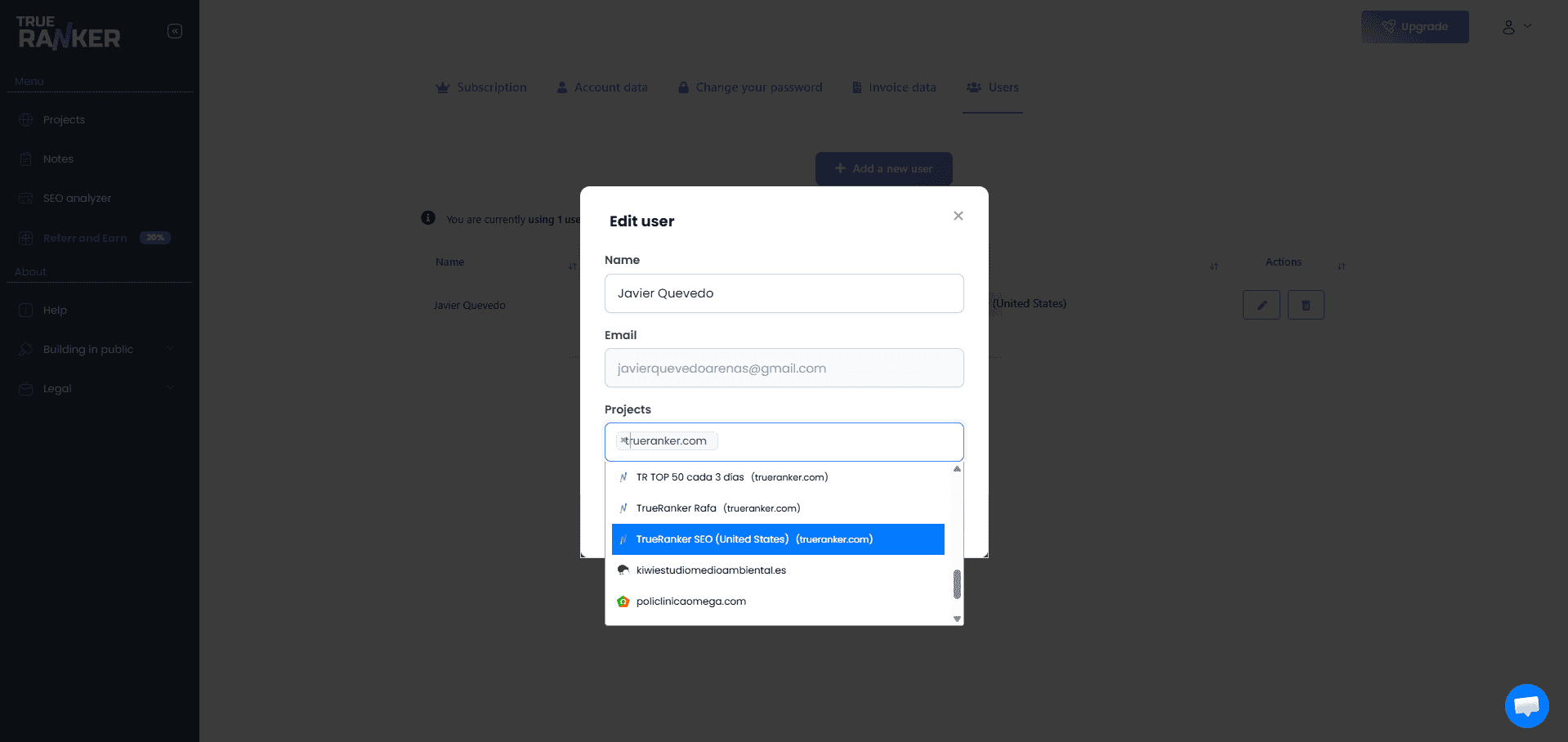
- A clean, modern pop-up window will appear. Fill in the following details:
- Name: The full name of the team member or client.
- Email: The email address they will use to log into TrueRanker. (Make sure it’s valid, as they will receive their access credentials here).
- Projects: Click on the drop-down menu to assign projects. You can select one specific project, multiple projects, or simply choose “All projects” if you want them to have full visibility of your entire account.
- Click the “Add new user” button at the bottom of the window to save and send the invitation.
Managing existing users #
From the main Users table, you have full control over your existing team members through the action buttons on the right side of each row:
- Edit (Pencil Icon): Need to assign a new project to a client or change a team member’s name? Click the edit button to open the user modal and update their assigned projects instantly. (Note: For security reasons, the email address of an existing user cannot be changed. If they need a new email, you must delete the current user and create a new one).
- Delete (Trash Icon): If a client leaves or a team member changes roles, click the trash icon to revoke their access. A confirmation prompt will appear to ensure you don’t delete anyone by accident. Once confirmed, their access to your TrueRanker projects is immediately removed.