Connecting TrueRanker with Looker Studio (formerly Google Data Studio)
Learn how to connect TrueRanker to Looker Studio in 3 simple steps. Visualize your keyword rankings and SEO data to build custom dashboards.
Updated on
The TrueRanker integration for Looker Studio allows you to connect your account and visualize all your rank tracking data directly in your own dashboards. Combine your positioning metrics with data from other sources like Google Analytics or Search Console to create complete and custom SEO reports.
This connector is free and available to all TrueRanker users.
Prerequisites
Before you begin, make sure you have the following:
- An active TrueRanker account.
- Your API Key and the Project ID you wish to connect. (You can find these in your TrueRanker dashboard under the API section).
How to Set Up the Connector in Looker Studio
Follow these simple steps to connect your data:
Step 1: Add the TrueRanker Connector
To connect your data, click the direct link below. This will open Looker Studio and automatically select the TrueRanker connector for you.
➤ Connect TrueRanker to Looker Studio
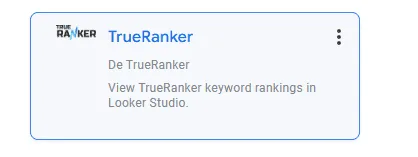
Note: Looker Studio may show a notice saying “we recommend using connectors from trusted sources”. This is normal for direct links. Simply click “Authorize” to proceed.
Step 2: Enter Your Credentials
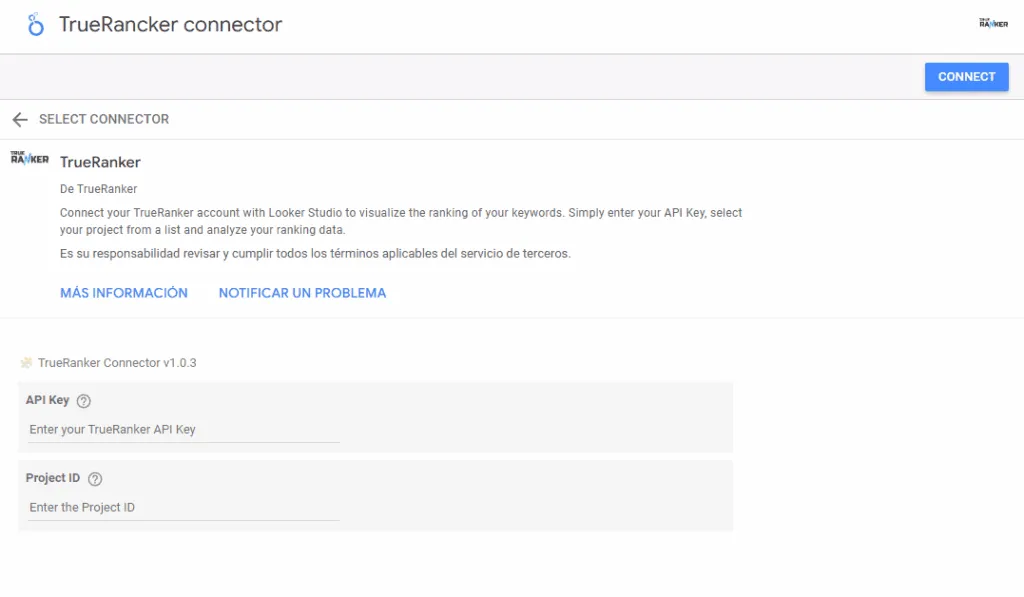
Looker Studio will ask you to authorize the connector. Next, you will need to enter your TrueRanker API Key and Project ID in the corresponding fields. Click “CONNECT” in the top right corner.
Step 3: Create Your Report
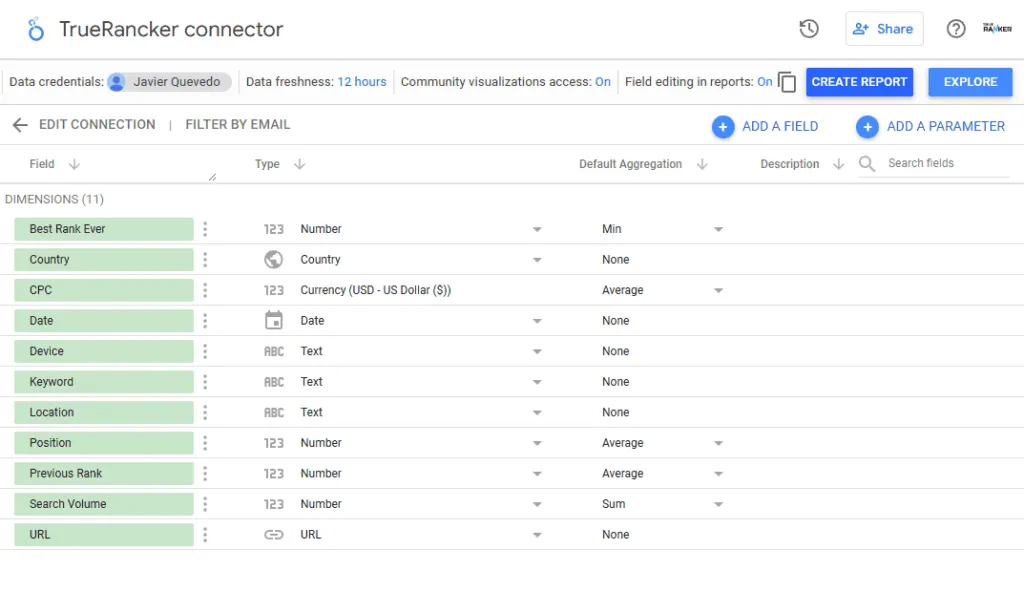
Once connected, you will see the list of all available fields (dimensions and metrics). Review that everything is correct and click the blue “CREATE REPORT” button in the top right.
Step 4: Add a Date Range Control (Recommended)
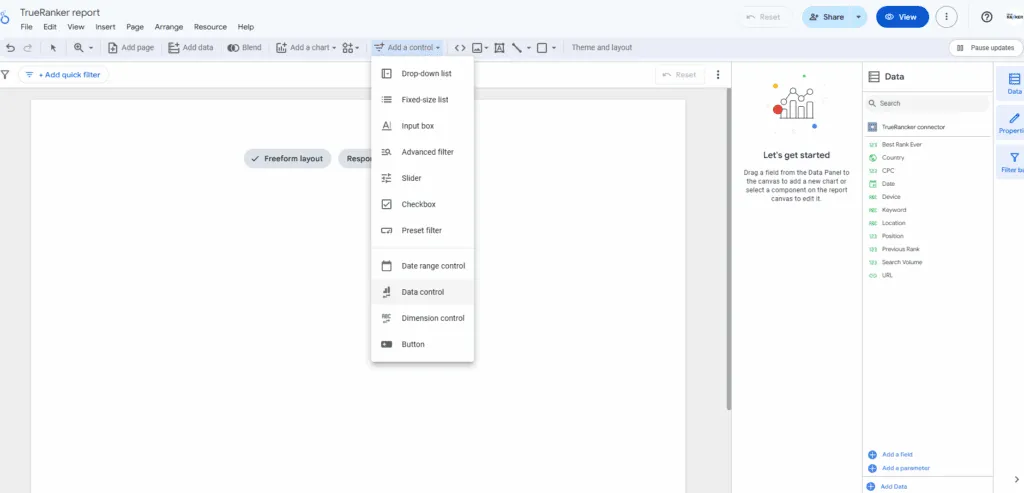
To make your report interactive, we recommend adding a date filter. In your report menu, go to Add a control > Date range control and place it on your dashboard. This will allow you to analyze your keyword performance across any date range you choose.
Available Dimensions and Metrics
The connector gives you access to the following fields:
| Dimensions | Metrics |
|---|---|
| Date | Position |
| Keyword | Search Volume |
| URL | CPC |
| Location | Previous Rank |
| Country | Best Rank Ever |
| Device |
Support
If you have any questions about using the connector or run into any issues, don’t hesitate to contact our support team through this link. We’ll be happy to help!