Managing Team Members and Multi-user Access
Create TrueRanker sub-accounts for teammates or clients, set permissions and assign projects without sharing the master login.
Updated on
The Multi-user feature allows you to grant access to your TrueRanker account to other team members, employees, or clients. Instead of sharing your master password, you can create individual sub-accounts and precisely control which projects each person can view and manage.
(Note: The Multi-user feature is available on our Pro, Agency, and Custom plans).
How to access the Multi-user panel
- Click on your profile icon (your email address) in the top right corner of the screen.
- Select “My Profile” from the drop-down menu.
- Navigate to the “Users” (Multi-user) tab on the far right.
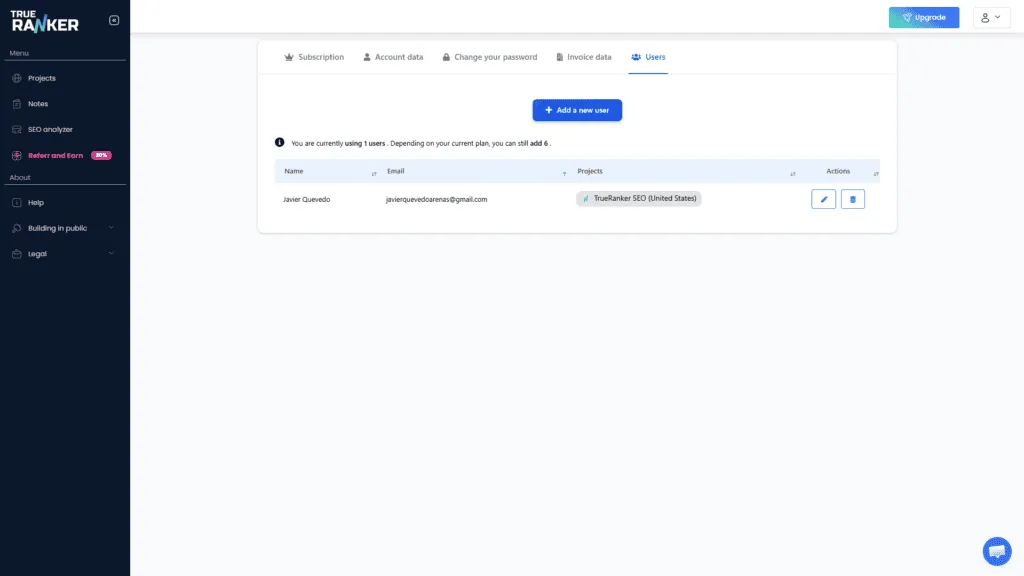
Here, you will see a clear table displaying all your currently active team members, their email addresses, and the specific projects they have access to.
How to add a new user
To invite a new member to your workspace, follow these simple steps:
- Click the blue “+ Add new user” button located at the top of the table.
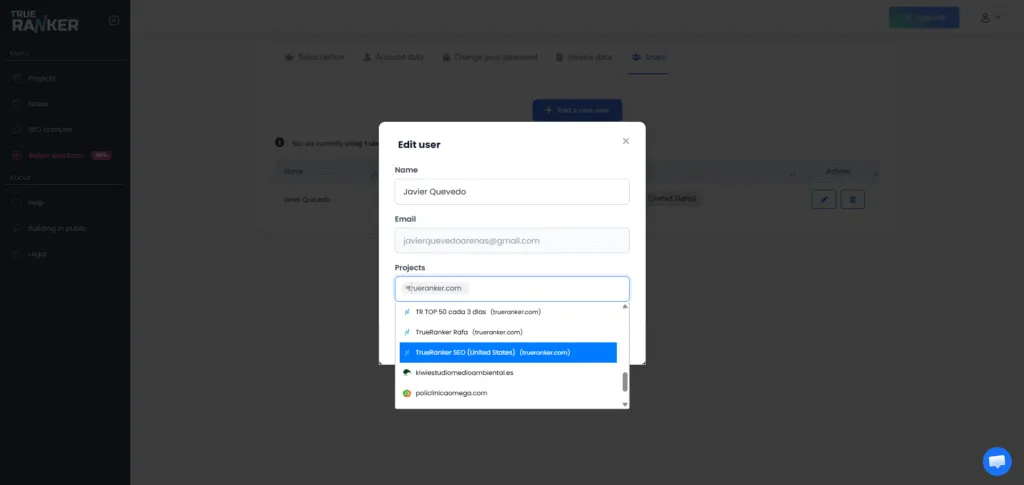
- A clean, modern pop-up window will appear. Fill in the following details:
- Name: The full name of the team member or client.
- Email: The email address they will use to log into TrueRanker. (Make sure it’s valid, as they will receive their access credentials here).
- Projects: Click on the drop-down menu to assign projects. You can select one specific project, multiple projects, or simply choose “All projects” if you want them to have full visibility of your entire account.
- Click the “Add new user” button at the bottom of the window to save and send the invitation.
Managing existing users
From the main Users table, you have full control over your existing team members through the action buttons on the right side of each row:
- Edit (Pencil Icon): Need to assign a new project to a client or change a team member’s name? Click the edit button to open the user modal and update their assigned projects instantly. (Note: For security reasons, the email address of an existing user cannot be changed. If they need a new email, you must delete the current user and create a new one).
- Delete (Trash Icon): If a client leaves or a team member changes roles, click the trash icon to revoke their access. A confirmation prompt will appear to ensure you don’t delete anyone by accident. Once confirmed, their access to your TrueRanker projects is immediately removed.