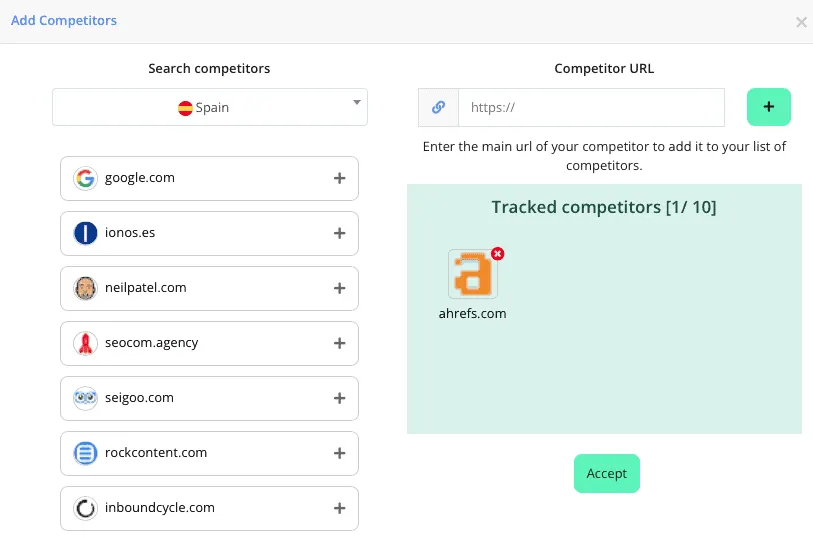
Add competitors to your project
Add competitors to your project and start monitoring their positions for your project's keywords.
Updated on
In order to obtain and save the keyword data of your competitors, you must add the competitors to your project. Follow the steps below:
1. Go to your project dashboard
Go to the dashboard of your project by clicking on its name in the project list or by choosing the project from the drop-down menu in the tool header.
2. Click on “Competitors”.
In the side menu, click on “Competitors”.
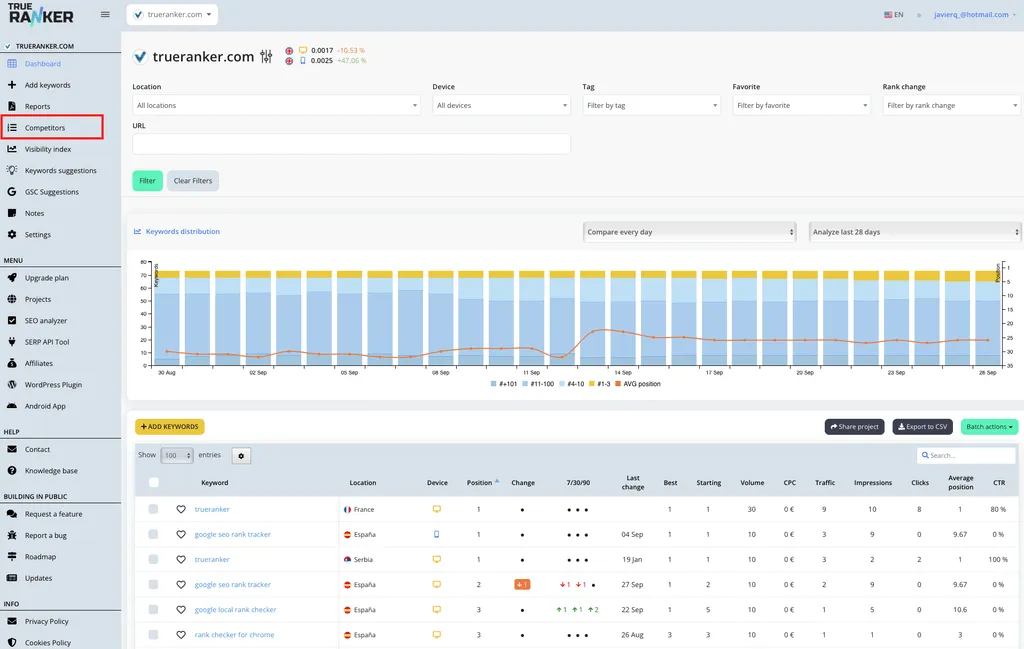
Click on “Competitors”.
3. Add competitors to your project
Click on the button “Add my first competitor”.
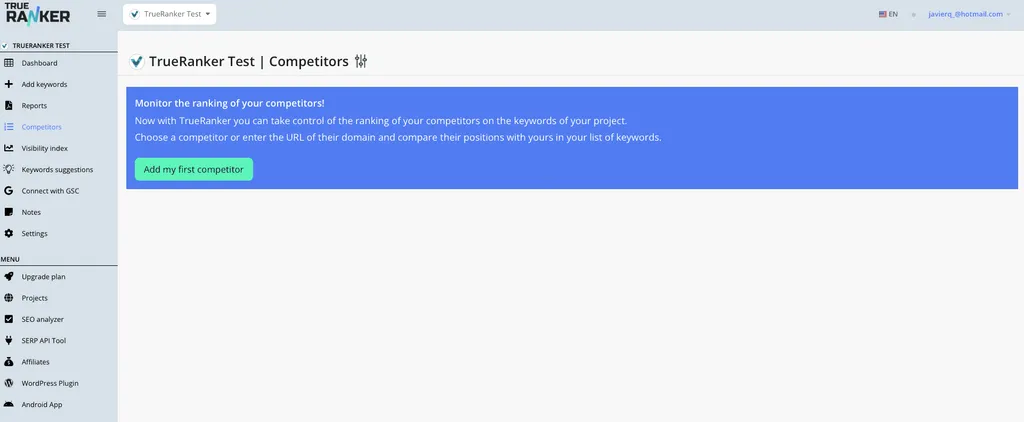
In TrueRanker you have two ways to add competitors to your project:
1. Add competitors from our suggestion list
TrueRanker provides you with a list of competitors. These competitors are competing with your website for a number of keywords. You can add these competitors to your project by clicking on them.
2. Add competitors manually
Enter the URL of your main competitor’s homepage.