Discover the position in Google of your website’s keywords
Check real Google rankings without Incognito guessing: daily tracking and the SERP your customers actually see.

It’s the #1 habit of every website owner: Open an Incognito tab, type in your main keyword, and pray to see yourself at the top.
Sound familiar? Well, I have bad news: What you see in Incognito is not real.
Google personalizes results based on your location (IP), browsing history, and device. Just because you see yourself at #1 doesn’t mean your customers do.
If you want to check your website’s real position in Google, you need objective data, not a “private” browser. In this guide, I’ll teach you the only reliable ways to do it: the manual way (free but limited) and the pro way (automatic and accurate).
Method 1: Use Google Search Console (The Free Way)
If you only want to check past data, Google Search Console (GSC) is your best friend. It’s Google’s official tool and tells you how many times you appeared and your average position.
How to check your average position:
- Go to your GSC property.
- Navigate to the Performance tab.
- Check the orange box that says Average Position.
- Scroll down to the queries table and filter by the keyword you are interested in.
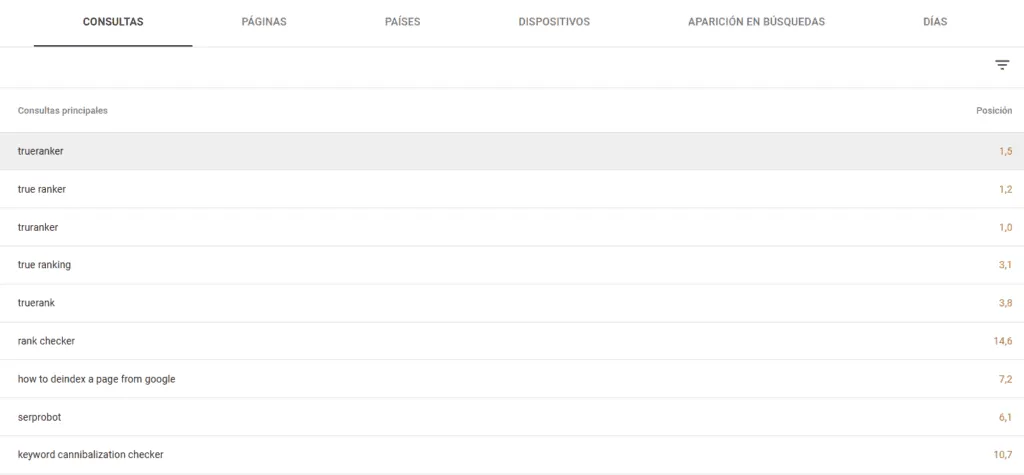
The problem with GSC: It gives you an “average.” If you were at position 1 in the morning and position 10 in the afternoon, GSC will tell you that you are at 5. It is useless for checking your exact position in real-time. Also, the data usually has a 2-day delay.
Method 2: Accurate Monitoring with TrueRanker (The Pro Way)
If you need to check if your ranking goes up or down today (not two days ago) and see exactly what position you hold in specific cities or devices, you need a Rank Tracker.
Here there are no “averages.” TrueRanker simulates a real, clean search to tell you the truth.
Step 1: Set Up Your Project
First, tell the tool what you want to track.
- Enter your domain.
- Choose the country (e.g., USA) and, very importantly, the specific city if you are a local business (e.g., New York).
- Choose if you want to track results on Mobile or Desktop.
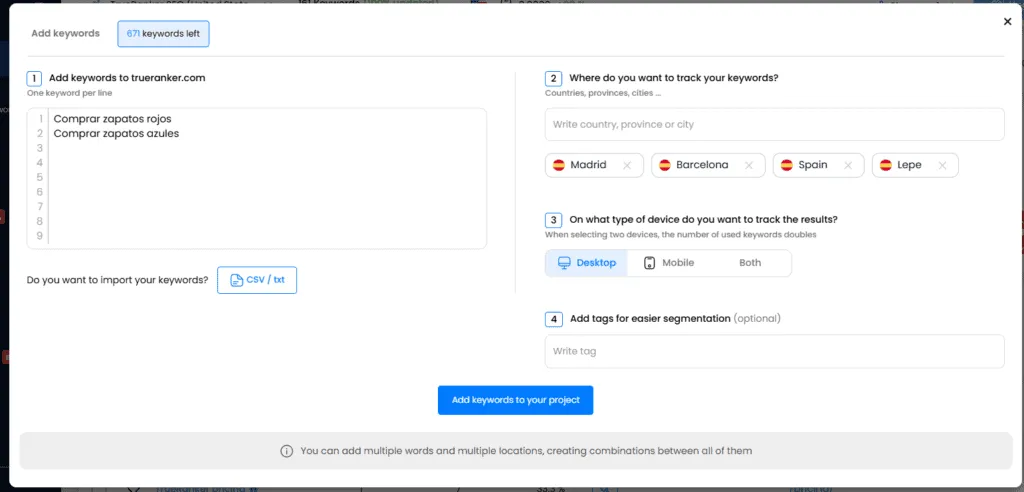
Step 2: Add Keywords to Track
What terms do you want to be found for? Add keywords like “buy sneakers” or “legal services”.
If you don’t know which ones to choose, remember you can use our Suggested Keywords feature to generate them automatically.
Step 3: Analyze Your Rankings Table
Once processed, you will see the dashboard. This is your SEO “photo finish.”
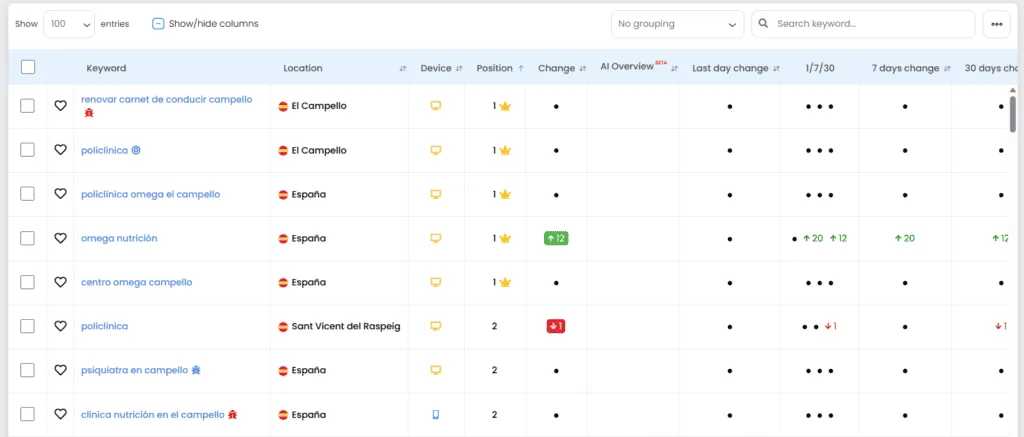
Look at the key columns:
- Current Position: The exact number where you appear right now.
- Best Position: The highest peak you have ever reached (great for seeing if you are losing momentum).
- Volume: Is that keyword worth it? If it has 10 searches a month, maybe don’t obsess over it.
Is My Website Ranking Well? (Visibility Index)
Don’t obsess over a single word. SEO is a marathon.
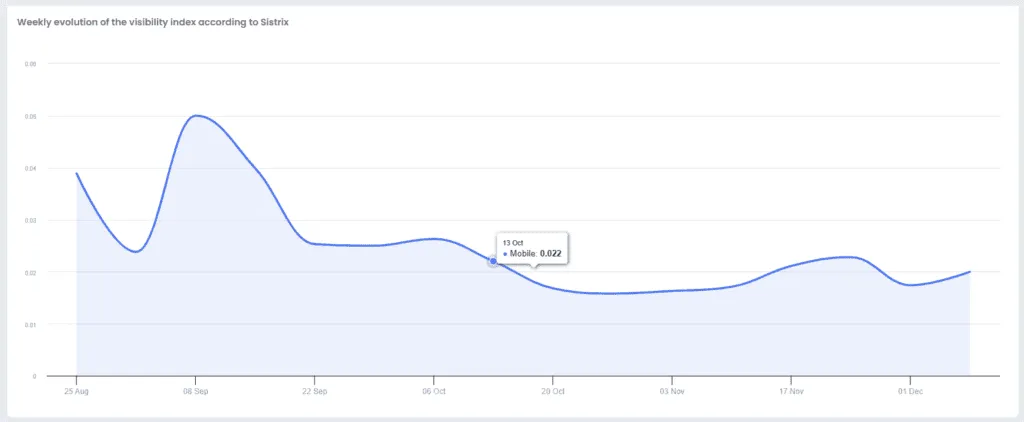
To check the general health of your project, look at the Visibility Index chart in TrueRanker. If the line goes up, it means that, overall, your website is becoming more relevant to Google.
Bonus: Check if Competitors Are Outranking You
Are you at position 4 and they are at 3? The difference in clicks can be huge. In the same rankings table, activate the competitor view to see, keyword by keyword, who is above you.
If you want to dive deeper into this, check out our guide on how to spy on your competitors.
Stop Guessing and Start Tracking
Checking your Google position isn’t vanity; it’s control. If you don’t measure it, you can’t improve it.
Leave Incognito mode for other things and start tracking your results professionally.
Want to check your real rankings right now?
✓ 100% Accurate Data (Geo-located) ✓ Daily updates & History
Written by

Javier Quevedo
Co-Founder & CEO, SEO Lead
Javier co-founded TrueRanker and leads the frontend, the public website, and the last mile between a ranking in the database and the screen an SEO actually uses. He has spent years turning GEO, local SEO, on-page work and AI visibility into product — and into the guides on this blog — so agencies can measure ChatGPT citations the same way they already measure Google. He also works the backend: a clean interface over stale data is still a lie.
You might be interested
Automated SEO Reporting: Stop Wasting Non-Billable Hours [2026]
Stop wasting non-billable hours. Create automated, white-label SEO reports with custom charts and Google Search Console data using TrueRanker.
Javier Quevedo3 min read
Read the post